
Status Pages
Status pages publish monitor health for customers, stakeholders, or internal teams. A status page can be public or password protected, use a Testable URL or custom domain, and include monitor details, incidents, uptime history, metric charts, announcements, subscribers, and calendar export.
Visitor Experience
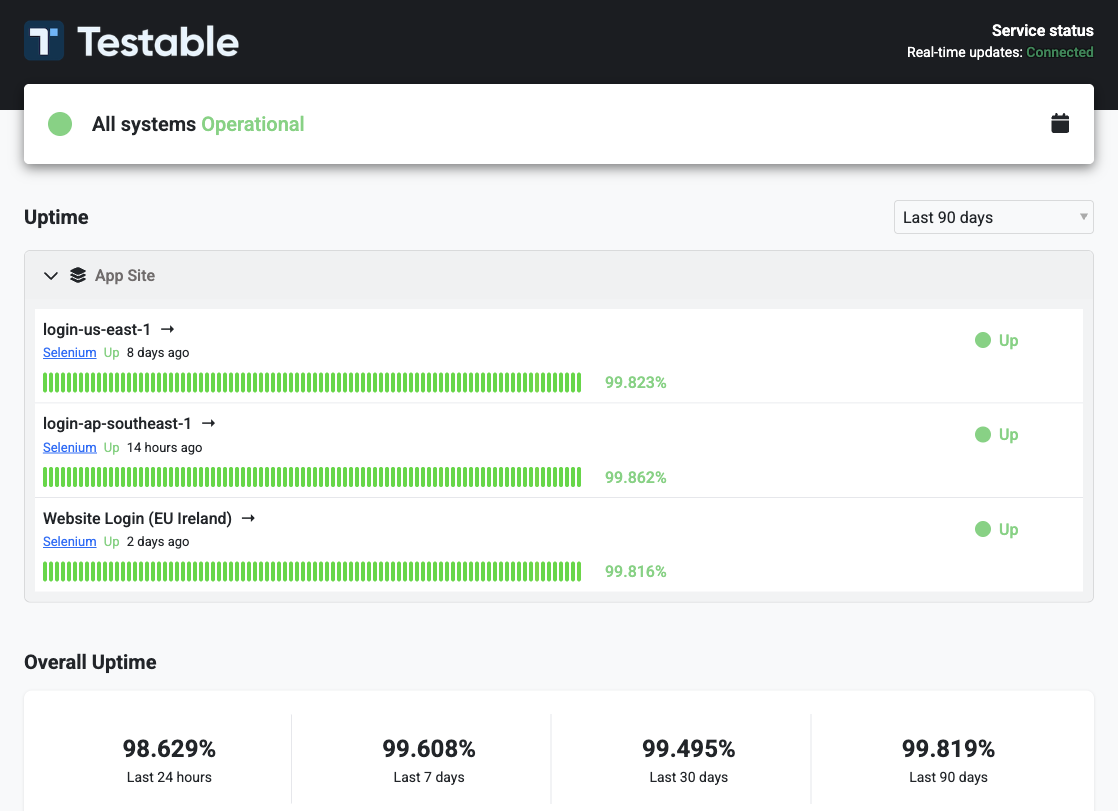
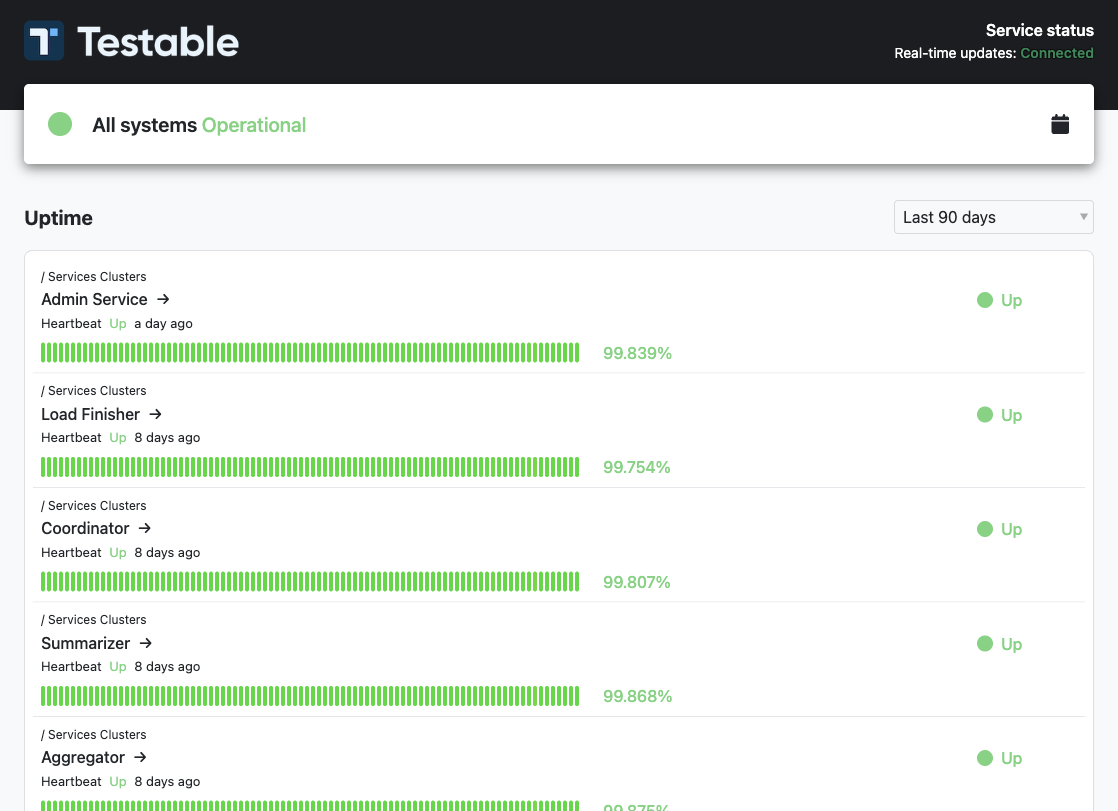
A published status page shows the current aggregate status, real-time connection state, calendar subscription action, grouped or flat monitor list, uptime bars, monitor state, monitor type, last state change, and optional overall uptime summaries.
Password Protection
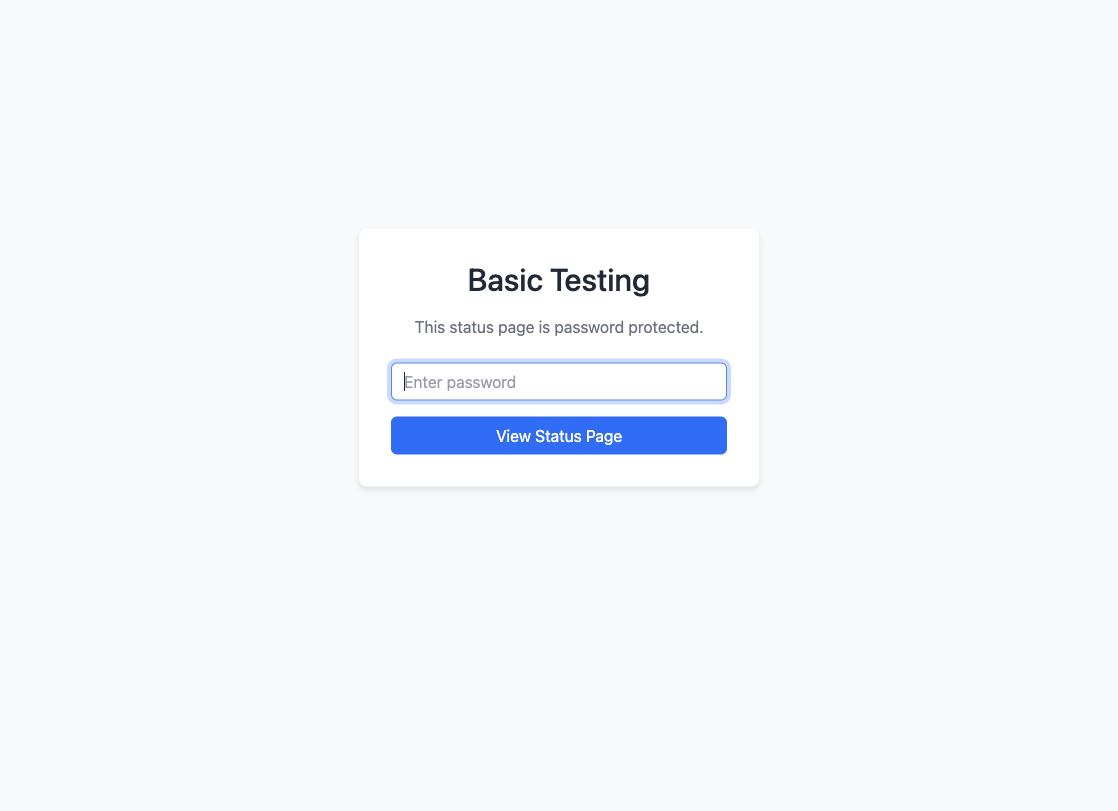
When password protection is enabled, visitors must enter the configured password before they can view monitor health, incidents, uptime history, or page details.
Status Page Management
Status Page List
The list shows each status page name, publish state, visibility, associated monitor count, and actions to view, edit, publish or unpublish, and delete.
General Settings
Basic Settings
- Name - Used as the status page title.
- Password - Password protects the page when enabled.
- URL - Optional target for the title link.
- Description - Supports Markdown.
Custom Domains and Certificates
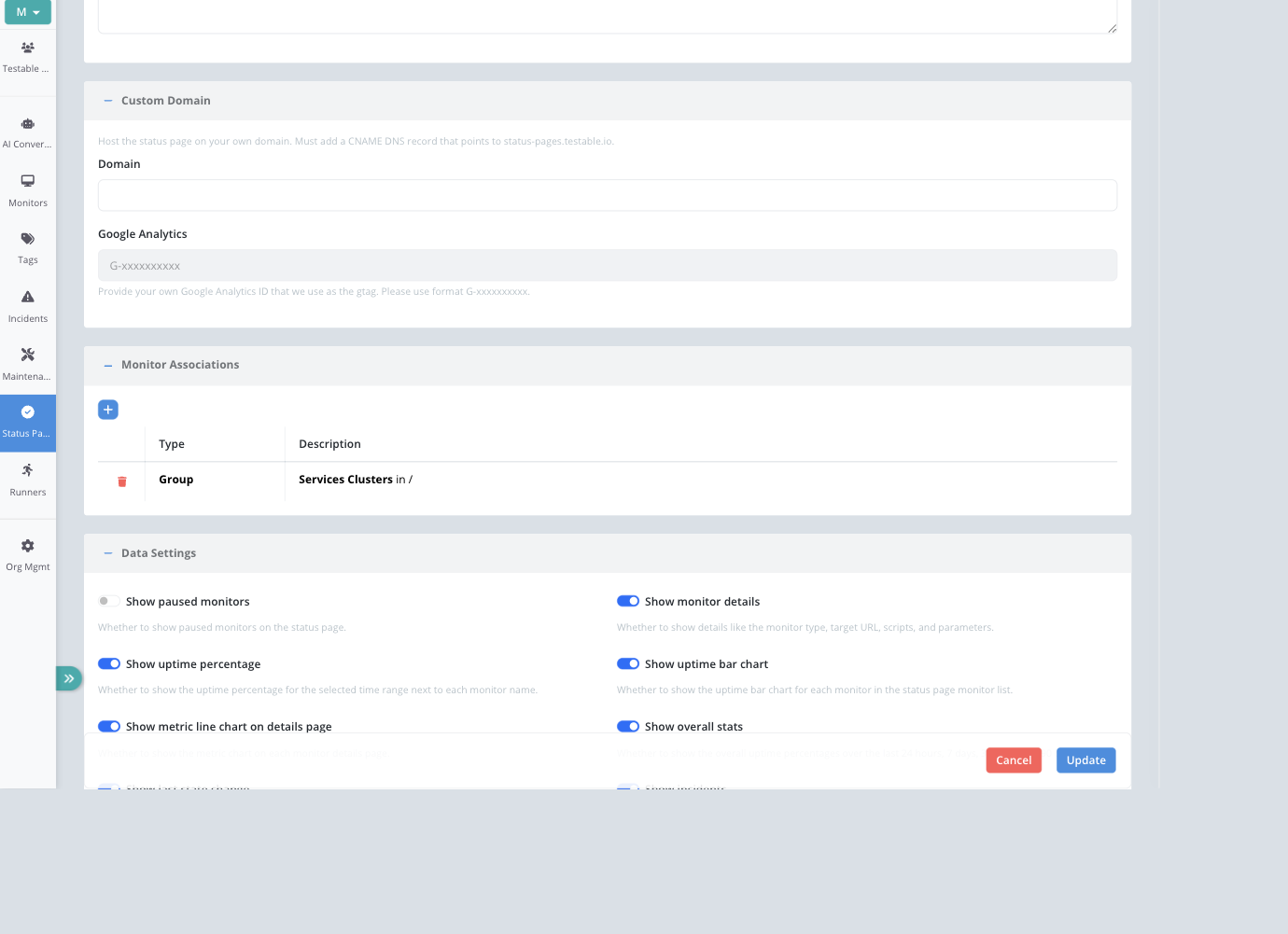
Status pages can be hosted on your own domain. Add a CNAME record pointing to the Testable status page domain shown in the form. Testable checks DNS, reports whether the CNAME matches, and can auto-generate a TLS certificate. You can also provide your own certificate and private key. Certificate details show generated/self-signed state, issued and expiry dates, the certificate body, and any certificate error.
Analytics
Custom-domain status pages can use your Google Analytics gtag ID in the G-xxxxxxxxxx format when the feature is enabled for your plan.
Monitor Associations
Add monitors directly, or associate by group, folder, or tag. Associations by folder, group, or tag keep status pages up to date as new monitors are added to those areas.
Data Settings
Data settings control what visitors can see:
- Show paused monitors.
- Show monitor details such as type, target URL, scripts, and parameters.
- Show uptime percentages and uptime bar charts.
- Show metric line charts on monitor detail pages.
- Show overall uptime stats for the last 24 hours, 7 days, 30 days, and 90 days.
- Show the last state change for each monitor.
- Show incidents and incident details such as root cause.
- Enable monitor detail pages.
- Organize monitors by folder and group or show a flat list.
- Export an iCal calendar for maintenance windows and incidents.
- Show status page and monitor descriptions.
Display Settings
- Logo and Favicon - Upload page branding assets with size and format validation.
- Layout - Wide shows uptime bars below monitor rows; compact keeps each row tighter.
- Logo Position - Left, center, or right.
- Theme - Light or dark.
- Font and Colors - Customize font, header background, header text, link color, and body text.
- Cookie Consent - Remove the cookie consent banner on custom-domain pages.
- White Label - Remove Testable branding when enabled for the plan.
- Search Engine Visibility - Control robots behavior for custom and default domains.
History Controls
The History panel controls how much historical data is exposed and which range is selected by default. Separate rows are available for incidents, uptime, announcements, and metrics. Maximum history can be none, a preset range, or a custom number of days; defaults use the available time range options.
Announcements
The Announcements tab enables status page announcements. Announcements have a title, Markdown preview, and Markdown full contents. Visitors see the preview in the announcement list and can expand for the full content.
Subscribers
The Subscribers tab enables email subscriptions. Manage subscribers by searching, adding one or more email addresses, seeing confirmation state, and deleting subscribers.
Best Practices
- Use group, folder, or tag associations for status pages that should evolve with your monitor inventory.
- Keep customer-facing pages public and internal pages password protected.
- Turn off low-value details if the page is for customers rather than engineers.
- Set history maximums intentionally so old incidents and metrics do not expose more than intended.
- Use custom domains and branding for public customer status pages.